User Guides
Add a Lab to the Coursepack
Switch to the TA view, and you can add a lab to the coursepack for your instructor.
Here are a few ways to easily find a lab on ACRC website. You can search for the lab that you are interested in with the title, or just search by the key word:
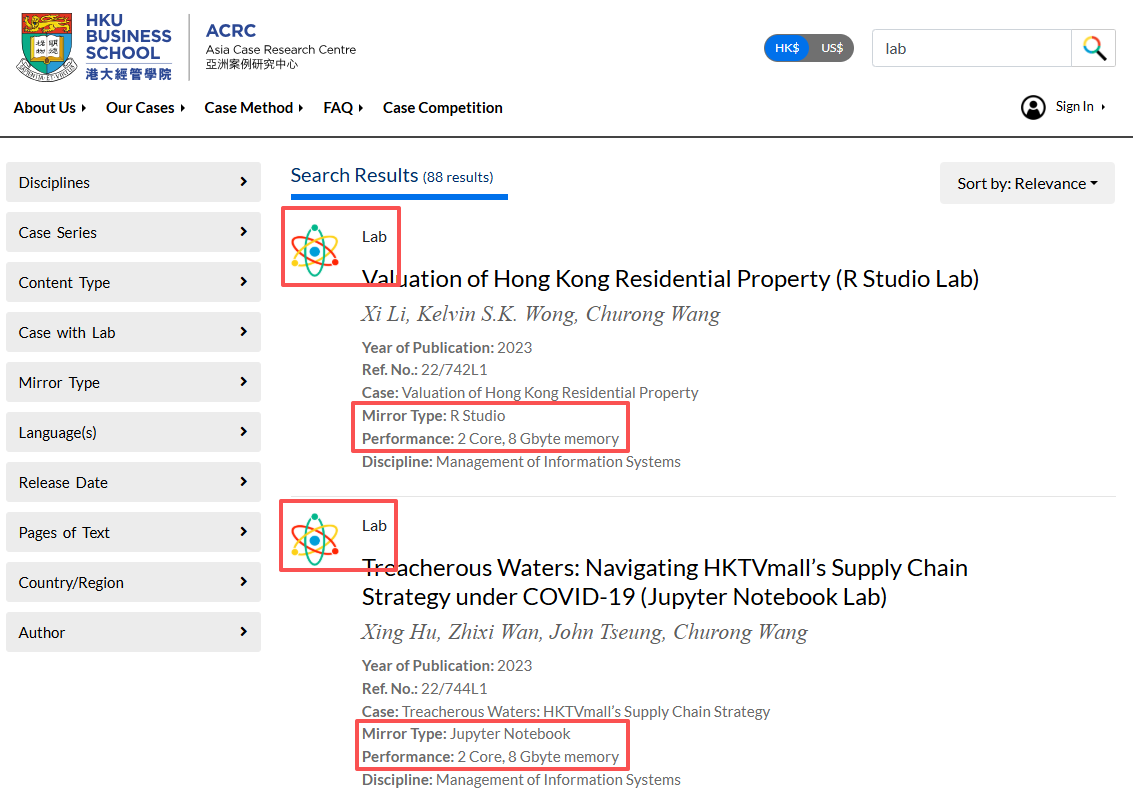
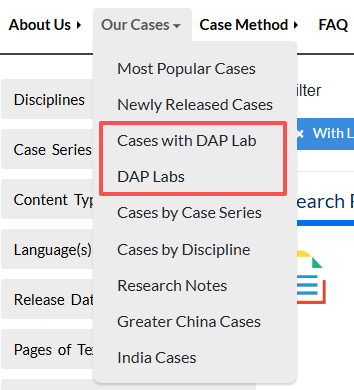
Labs can also be filtered out using the filter “Cases with DAP Lab” and “DAP Labs”. The case and lab are linked on the details page.
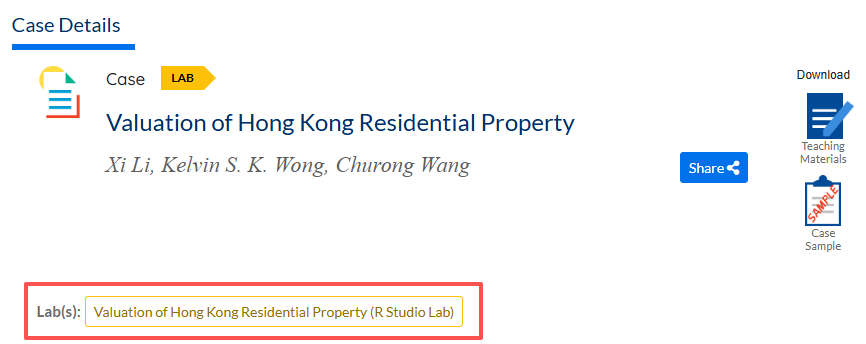
Some cases may offer multiple lab versions with different environments such as R Lab and Python Lab. Make sure you have selected your preferred environment version, then go to the Lab Details page. On the right panel, click +Add to Coursepack.
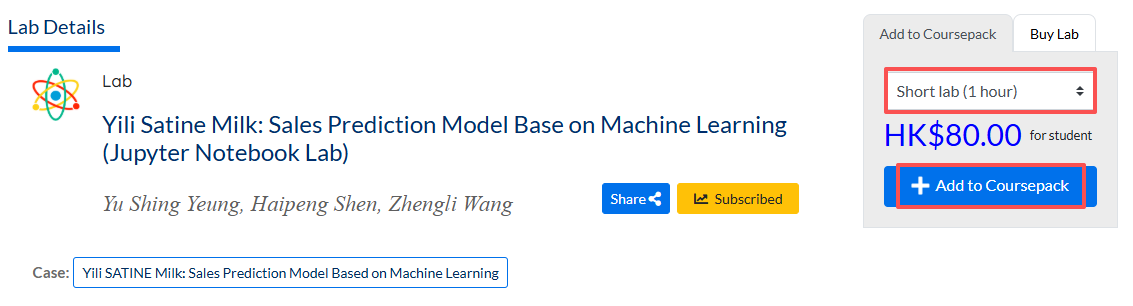
If you have already created a Coursepack, choose the coursepack and click Add to Coursepack.
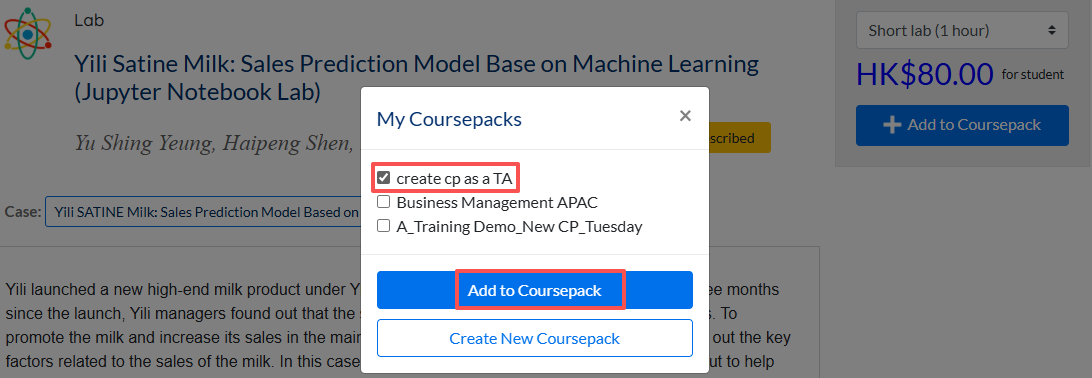
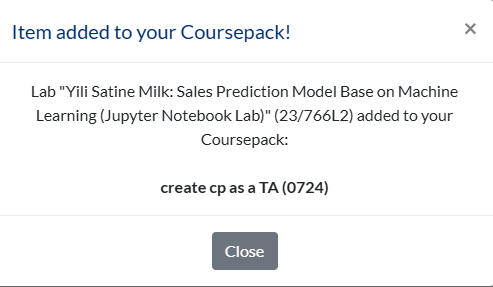
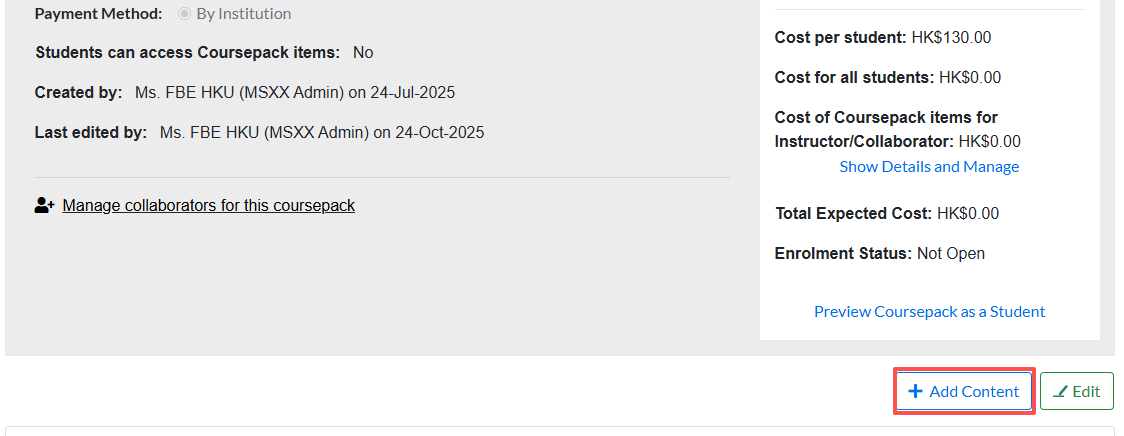
Starting from a Coursepack Details page, you can also find a button +Add Content. This will direct you to the searching page but pre-select the coursepack for you when adding the items.
Important: Once a Coursepack has been published, the items included cannot be replaced or refunded. Please ensure you have selected the correct lab before publishing the Coursepack.