User Guides
Publish an Institution-Paid Coursepack
As a collaborator, TA could manage the coursepack in the same way as the instructor.
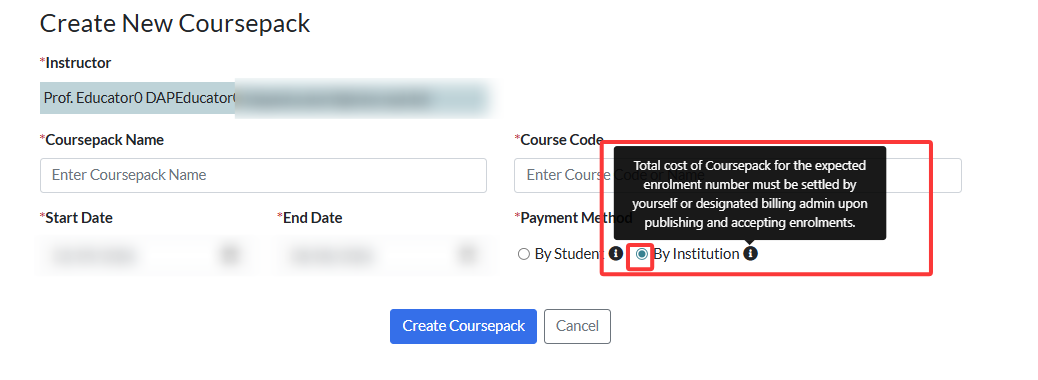
For institution‑paid Coursepacks, the instructors cover the cost instead of the students. Publishing requires upfront payment based on estimated student enrolment.
Instructors can pay directly or assign an administrative colleague to complete the transaction. Once paid, students can join the Coursepack for free using the enrolment link.
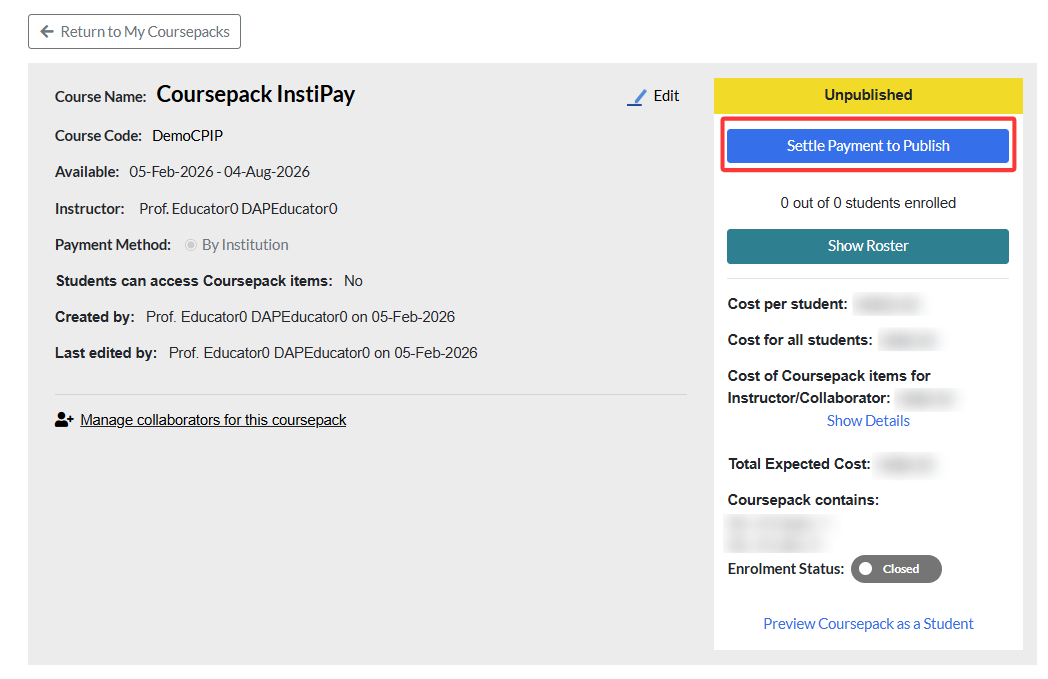
To publish the Coursepack, go to the Coursepack page and click Settle Payment to Publish.
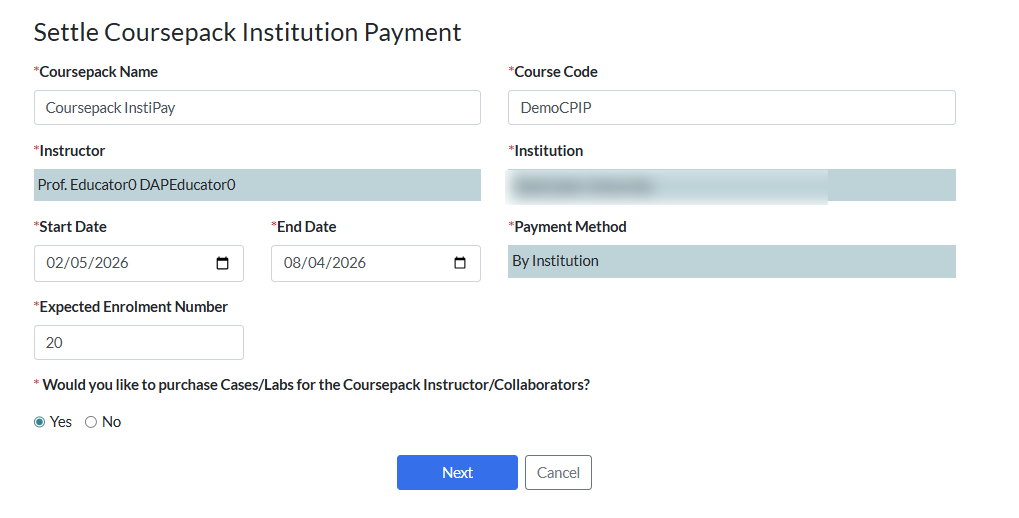
Expected Enrolment Number
This determines your upfront publishing cost, but it doesn't limit student enrolment. If more students enrol than expected, they can still enroll, but won't gain access to the materials until their extra seats are paid for. Since upfront payments are non-refundable, please enter the most accurate estimate possible.

Purchase Coursepack Material for Instructors/Collaborators
This option allows you to purchase educator copies of the Cases and Labs for Coursepack instructors and collaborators.

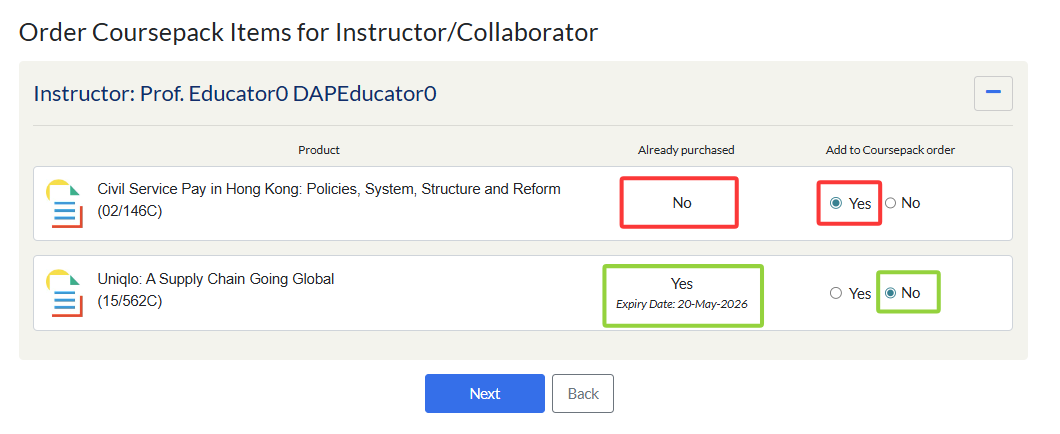
If you select Yes and click Next, you will be taken to a page where you can choose which items to purchase for each instructor or collaborator.
If the instructor has already purchased the cases and the licenses have not yet expired, No will be automatically pre-selected. You may still select Yes if you wish to extend the license period.
For any contents that have not yet been purchased, the option will default to Yes.
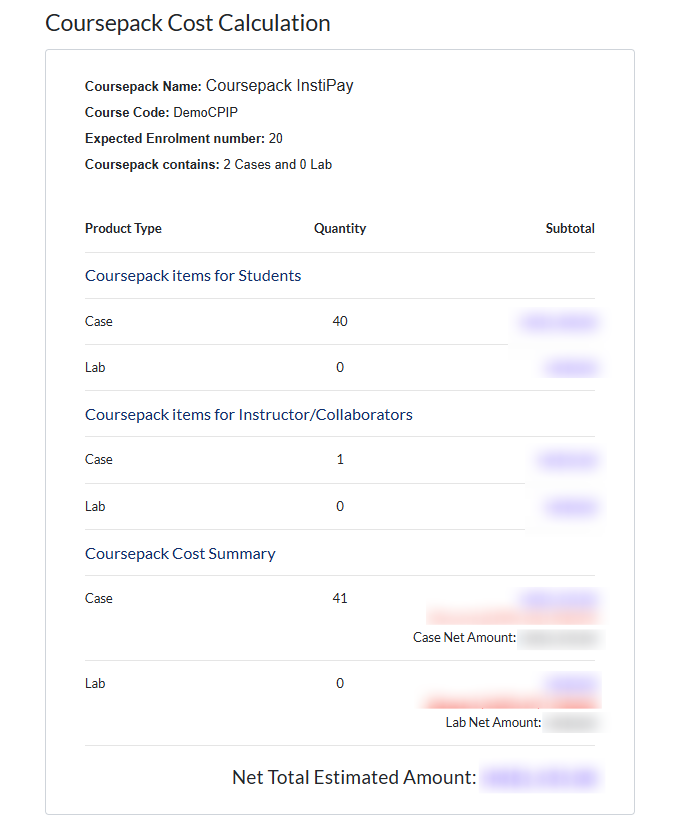
Click Next and you will see a cost summary calculated based on the expected number of students.
At the bottom of the page, you will find two options for designating who will settle the payment:
- Self-Pay: Pay yourself using a credit card.
- Select Payer: Choose an administrator from your institution to pay for the Coursepack on your behalf using a credit card.
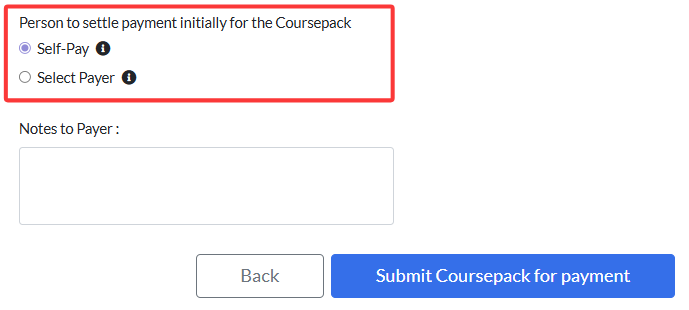
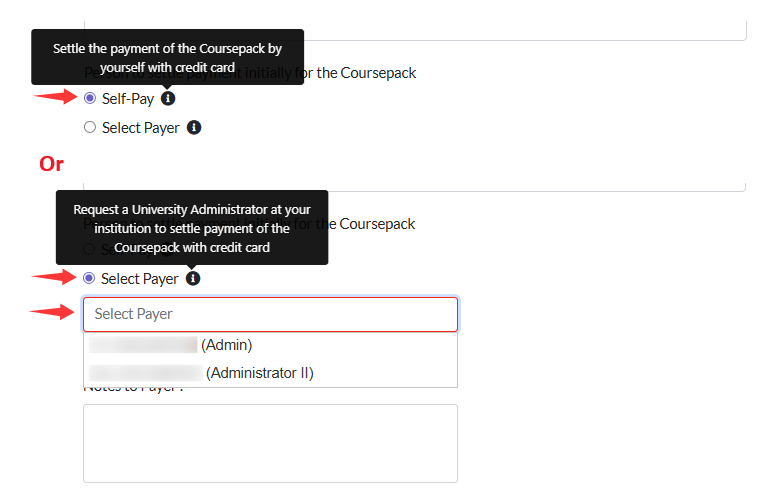
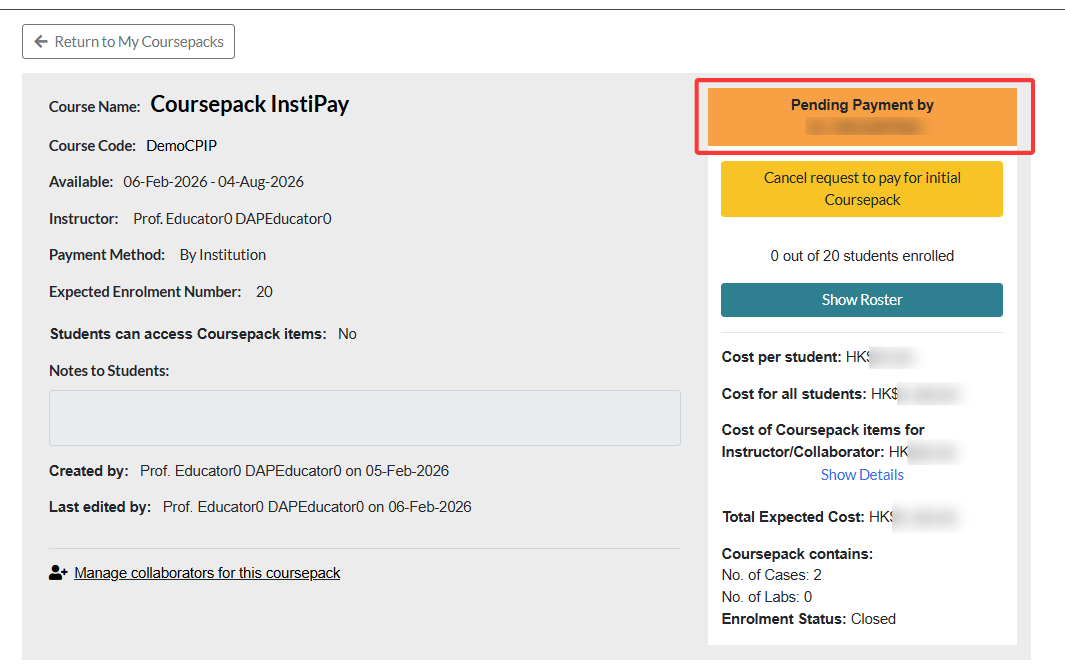
If you choose an administrator to make the payment on your behalf, they will receive an email notification with the payment instructions. Your Coursepack status will then change to Pending Payment and remain that way until the payment is completed.
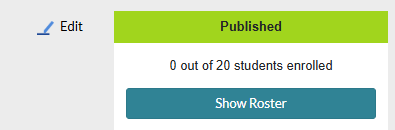
Once payment is completed, the Coursepack status will update to Published, and the system will generate a unique Coursepack link for your sharing to the students for enrolment.
If more students enroll than the expected number, they will not have access until the institution completes the additional payment.
To settle the additional payment, go to the Coursepack page and click Pay for additional enrolments.
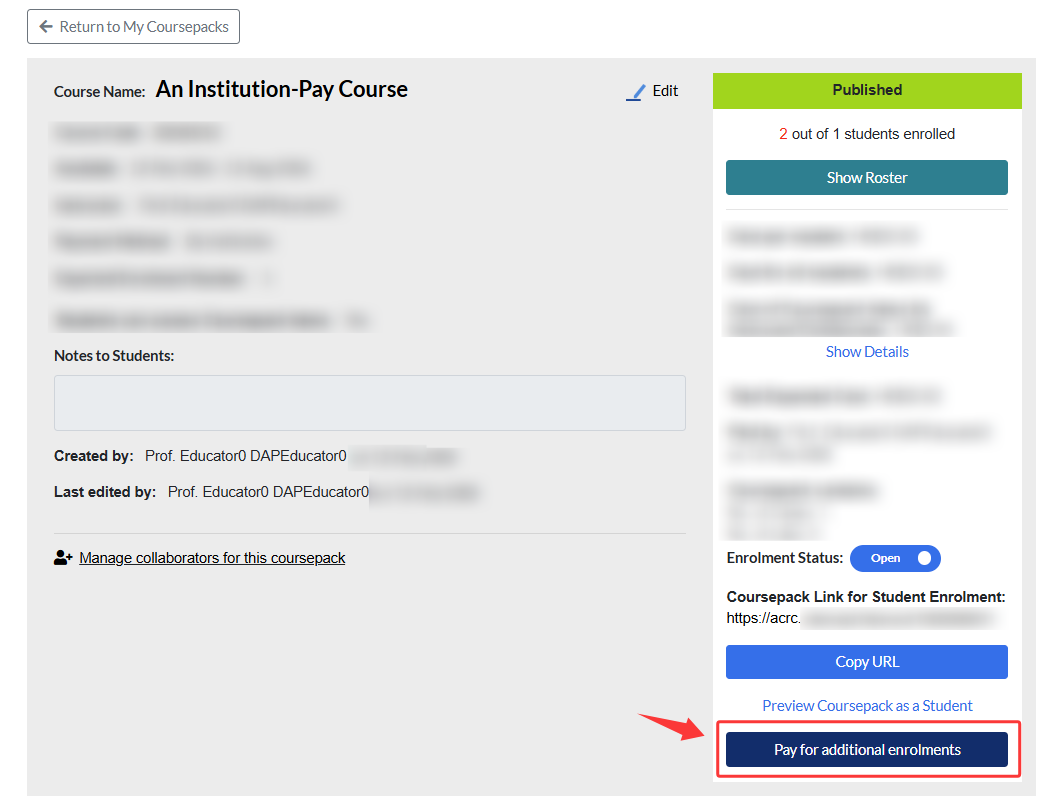
You will be taken to a page that displays the list of additional enrolments.
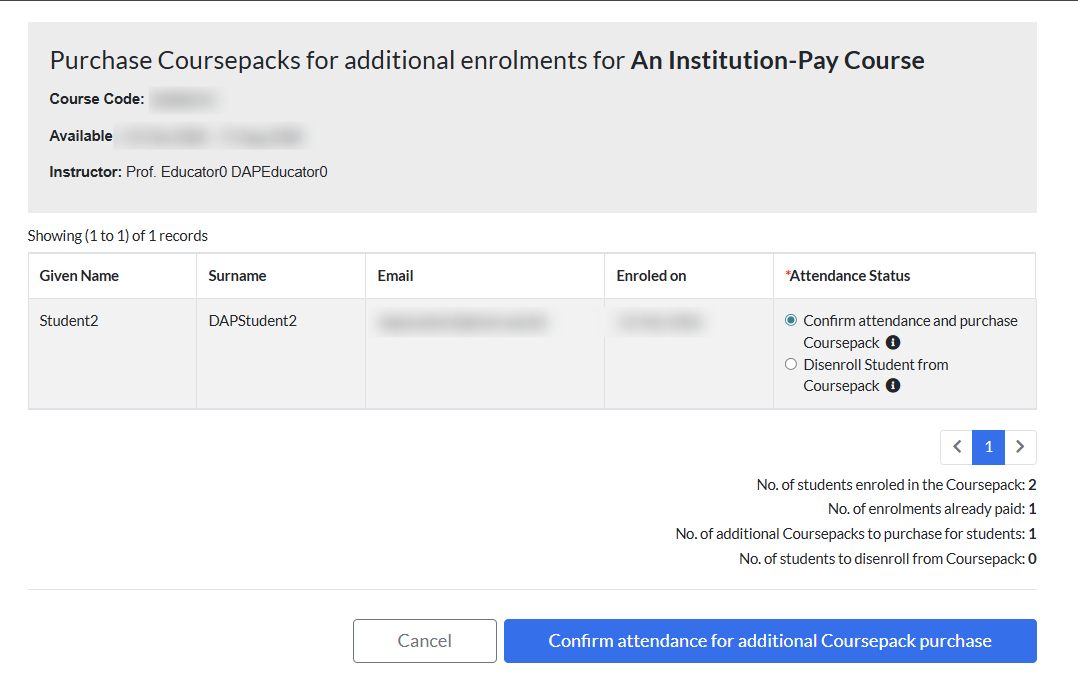
For each student, you can either confirm their enrolment and purchase a seat for them, or you can choose to disenroll the student.
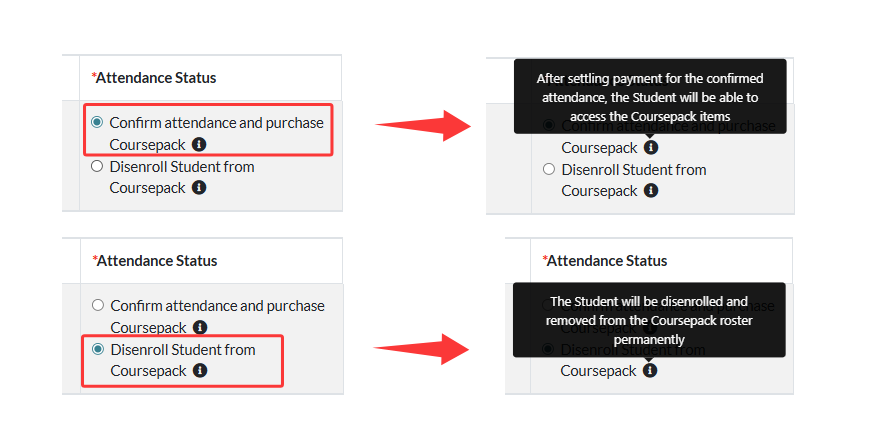
When ready, click Confirm attendance for additional Coursepack purchase. You will then see a cost summary for the additional items.
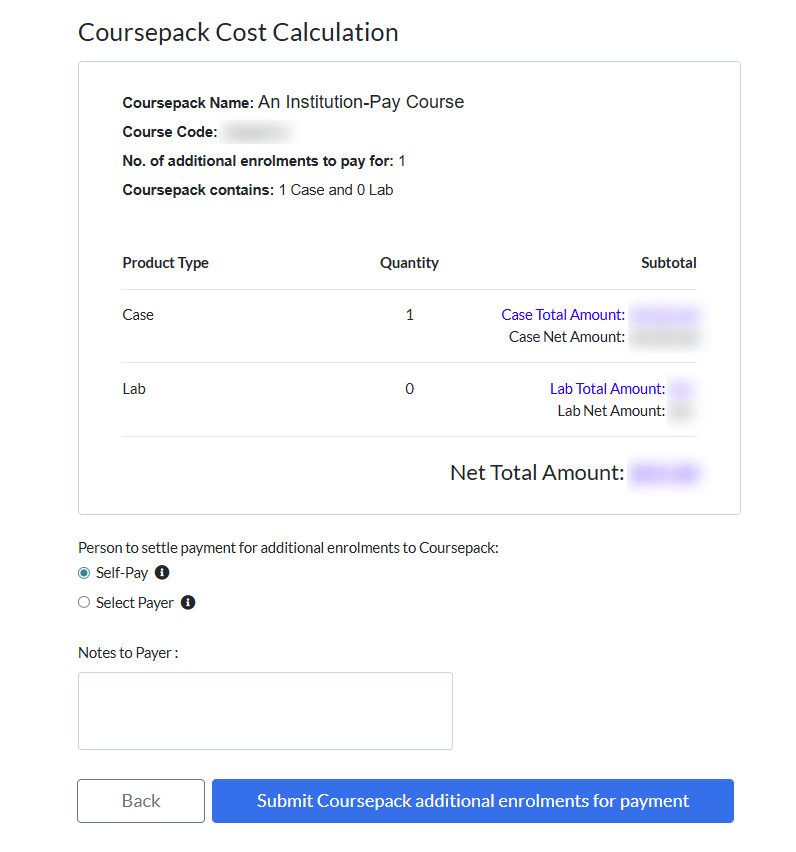
As with the upfront payment you completed when publishing the Coursepack, you can either pay for the additional purchase yourself or assign another administrative colleague from your institution to make the payment.
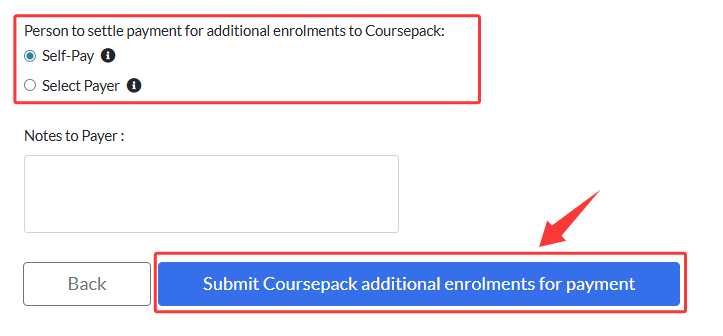
Review payment summary and click Make Payment.
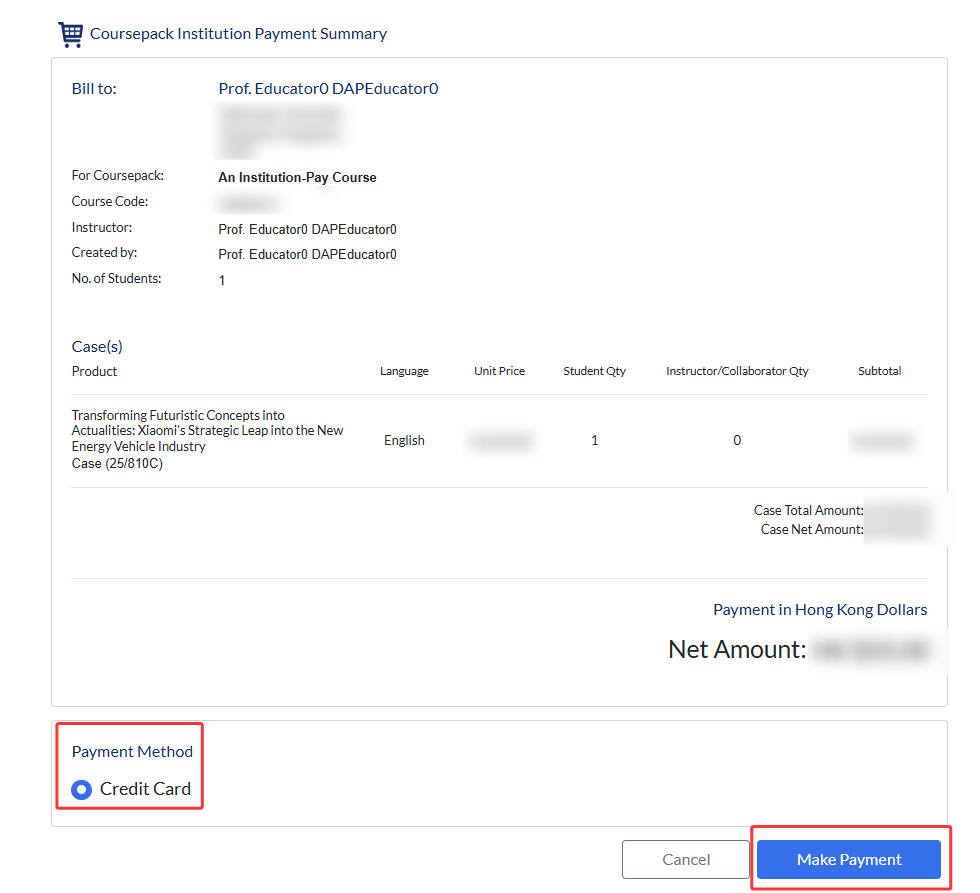
Complete the credit card payment process.
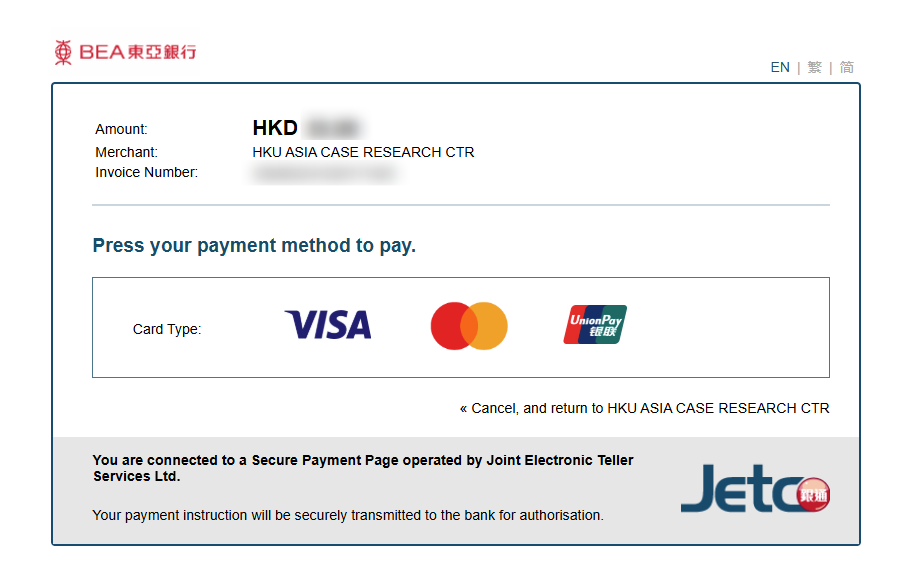
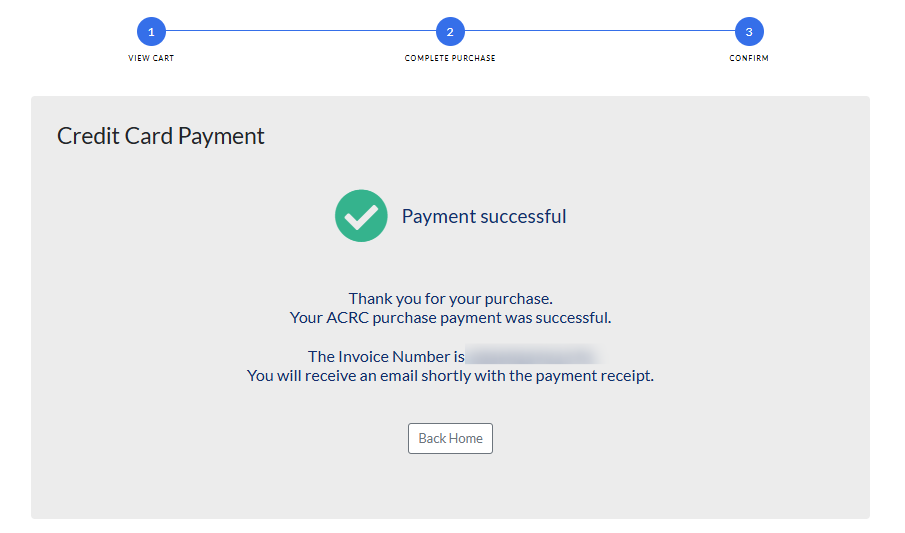
Once the payment is completed, you will see the confirmation message below along with your invoice number. The additional enrolled students will then gain access to the Coursepack items.