User Guides
Check Student Workspaces via the Student List
In the Student List tab, enrolled students appear either individually or in groups, depending on the lab’s User Mode. Each entry includes a Workspace, which stores the student’s (or group’s) online work.
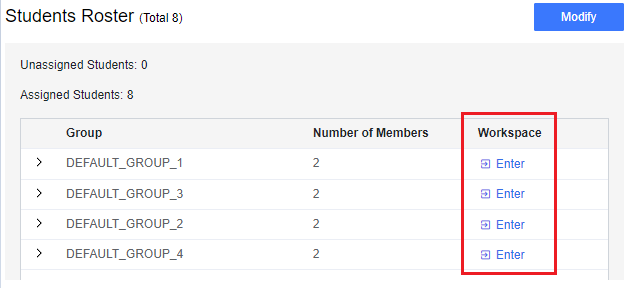
- Group Labs: Clicking Enter on a group workspace takes you to the shared environment for that group.
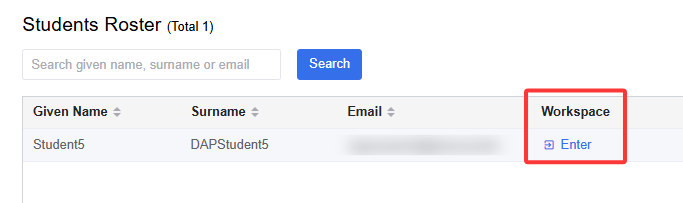
- Individual Labs: Clicking Enter takes you to the student’s personal workspace.
Student Roster of group lab.
Student Roster of individual lab.
If the student or the group has not accessed the lab yet, then their workspace won't be available for checking. You will also see the following warning message.

After clicking Enter, the workspace preview page looks like the following:
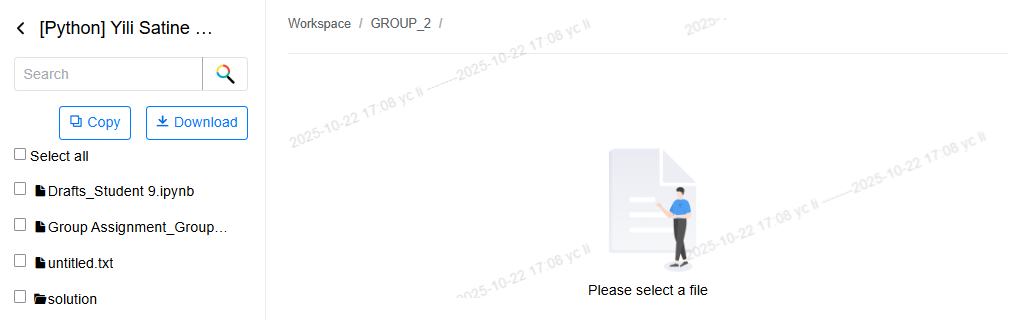
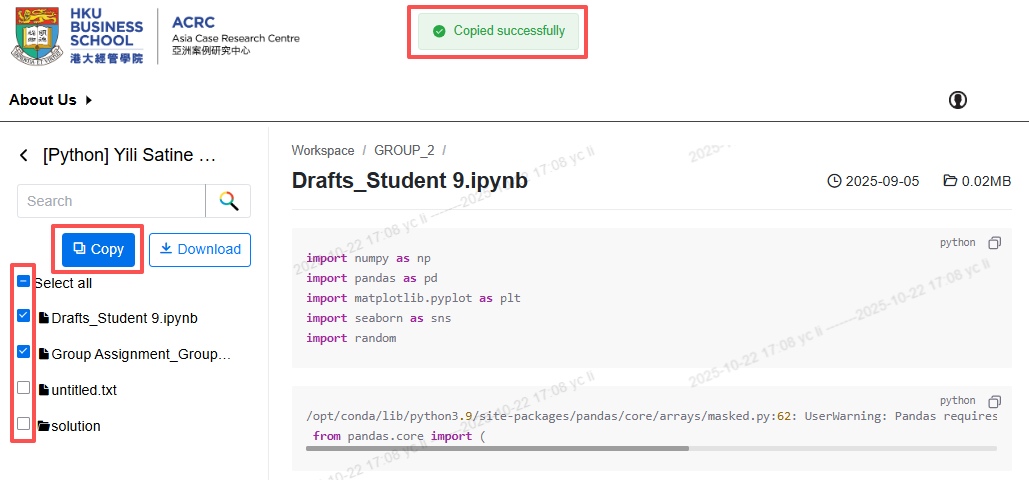
Files are listed on the left; click a file name to preview it on the right.
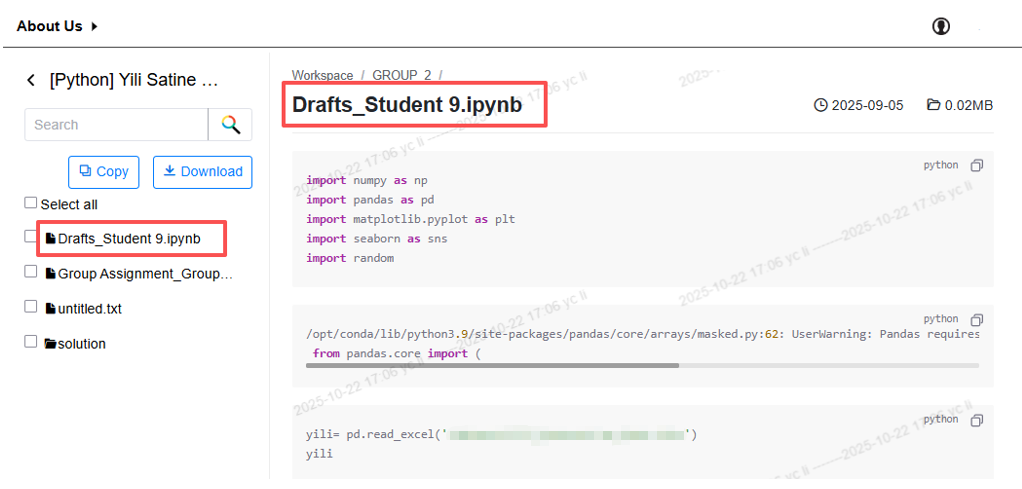
Use the Copy button to copy selected files to your personal lab for code checking.
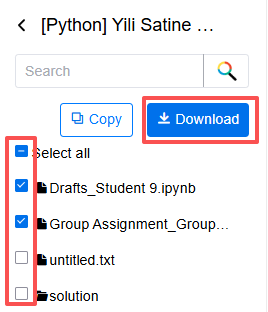
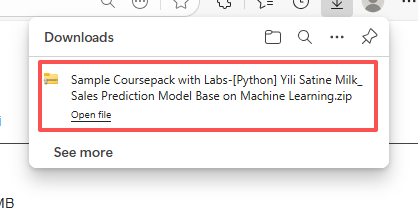
Use the Download button to save selected files to your local computer.
To download or copy multiple workspaces in one click, please refer to the instructions: Monitor Student Lab.