User Guides
Launch and Stop Your Lab
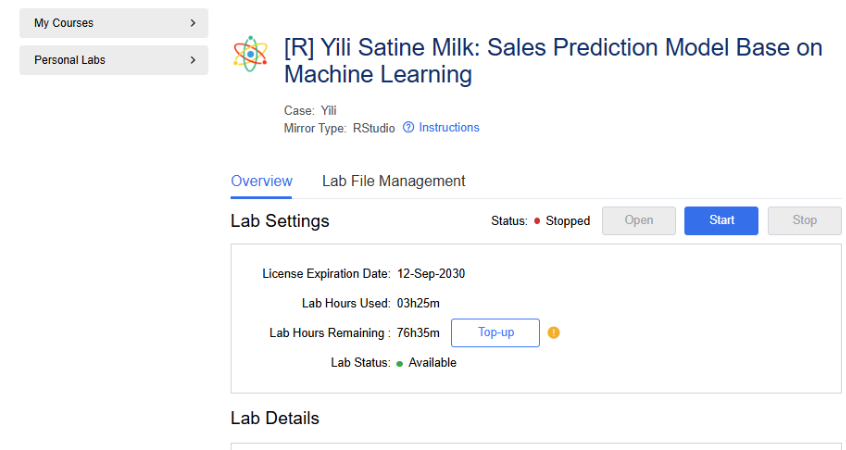
Make sure you are on the lab launch page shown as follows. If not, refer to the instructions to find your lab.
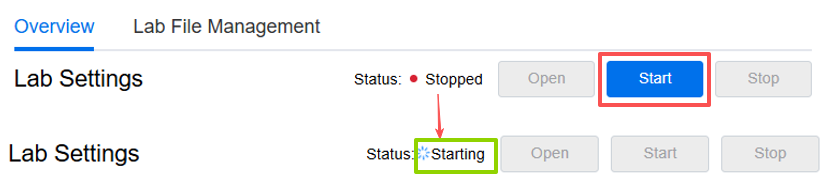
To start the lab session, click Start. The status will change from “Stopped” to “Starting”.
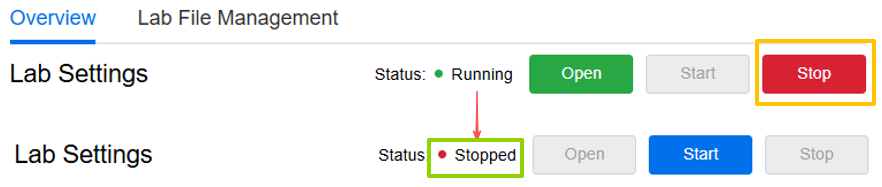
Once the lab is successfully launched, the Open button will turn green, and the status will update to “Running”. This means the lab environment is ready, and your lab time will begin counting down.

Click Open to enter the coding environment. A timer at the top right corner will show your remaining lab time in real time.
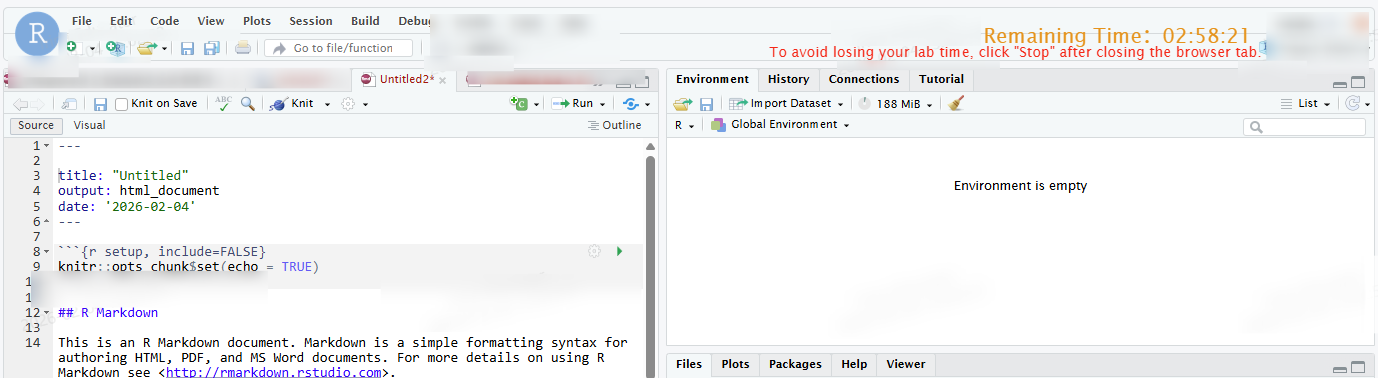
Example: Screenshot of DAP RStudio Environment
After you finish using the lab, remember to save your work and return to the lab page. Click Stop to end the session and stop the time counting.