FAQ
General
A Payment Administrator (Super Admin) is an higher-level administrative role for institutions with an ACRC agreement, authorized to approve billing and publish Coursepacks.
The key difference is authority:
- Coursepack Administrator (Basic): Can only prepare coursepacks. They cannot publish them or handle money. They must submit their Coursepacks to a Payment Administrator for approval of publish and billing.
- Payment Administrator ("Super Admin"): Can do everything a basic admin does, plus directly approve and publish Coursepacks for student access and manage Coursepack payments and billing.

You should choose this role if you are responsible for managing and processing payments for Coursepack orders on behalf of your department or Programme.
To get this level of access, please follow these steps:
- Register for an administrator account first. [See More: Register as a University Administrator]
- Contact us to request the Payment Administrator role.
Our team will then upgrade your account permissions for you.
No. Administrators cannot assign Teaching Assistants directly. The instructor must invite their own Teaching Assistant(s) through their account.
Please advise the instructor to send an invitation to their TA from their own account dashboard. (See more:An educator invites a user to become their Teaching Assistant)
Students access cases by enrolling through a unique Coursepack link.
As the instructor or Coursepack administrator, you will need to share this link with your students after the Coursepack is published so they can log in and access the materials. See more: Enroll Students to the Coursepack.
Coursepack
Yes. As an administrator, you can create Coursepacks for instructors at your institution.

To create a Coursepack for an instructor, you will need to know:
- The instructor’s ACRC account (email address, username)
- The course name and course code
- The course start and end dates
- Estimated student enrolment number
Once you have these details, you can create the new Coursepack and begin adding materials to it.
Yes, as long as they have an active ACRC educator account. Instructors also have the option to assign their teaching assistants to create Coursepacks for them.
They can co-teach the same Coursepack. Simply assign one professor as the Coursepack instructor during creation, then invite the other professors to the Coursepack as collaborators.
The main difference is that a Teaching Assistant (TA) is an account-level role, while a Collaborator is a Coursepack-level role.
TA: Linked to an instructor’s overall account. A TA can support the instructor globally by creating and managing Coursepacks, and purchasing cases on their behalf. To help teach a specific class, a TA can also be invited as a Collaborator to that Coursepack.
Coursepack Collaborator: Assigned specifically to help "co-teach" a single Coursepack. A Collaborator can be a TA or a co-teacher (another professor).
The system automatically sends them a confirmation email. Additionally, the Coursepack will instantly appear under My Coursepacks when they log in to their account.
Students can still enroll! The estimate is not a hard cap. You will be able to finalize the actual student count later when you submit the Coursepack for payment processing.
No, Coursepacks do not automatically include educator copies. If an instructor needs access to the materials, you will need to add an educator copy manually. (Note: If the instructor already holds a valid copy of the material on their account, you do not need to add another one).
Learn how to do add an Educator Copy to a Coursepack: Add an Educator's Copy of Materials to the Coursepack.
You can still add it after the Coursepack is published, as long as it hasn't been finalized yet. See more: Add Educator's copy to a published Coursepack.
Yes. You can add different language versions of the same material. They will appear as independent items for your students to access.
To add multiple languages:
- Go to the case page.
- Use the language dropdown menu (see screenshot below) to select your first version.
- Click Add to Coursepack.
- Change the dropdown menu choices and click Add to Coursepack again.

Each version will display as an independent item for your students.

You can add new materials, but you cannot remove them.
To add materials: You can add new cases at any time before finalizing the Coursepack. Just remember to republish the Coursepack so the new additions take effect.
To remove materials: Removals must be done before the Coursepack is published.
Finalizing enrollment is the step where you confirm your total student count so the Coursepack can be billed accurately.
When confirming your final number, you should include:
- All current students enrolled in the course.
- Any dropped students who accessed or downloaded the Coursepack materials before dropping the course.
You should finalize your Coursepack only after your student roster is finalized (such as after the add/drop period) and your Coursepack materials are complete.
Once you finalize a Coursepack, it is locked. This means:
- You cannot add new materials to the Coursepack.
- No new students will be able to enroll.
Please ensure all content is added and all students have joined before completing this step.
Yes, existing students will still have access, but no new students will be able to enroll.
- Existing Students: Access is not affected. Students who are already enrolled can continue to access the materials until the Coursepack’s end date.
- New Students: Because finalizing locks the Coursepack, the enrollment link will no longer work, and no additional students can be added.
Invoices and payments are managed exclusively by Payment Administrators.
- If you are NOT a Payment Administrator: You do not need to handle invoicing. Once you finalize the Coursepack enrolment and submit to the Payment Administrator, your task is done. Your Payment Administrator will take over to settle the order and process the invoice payment.
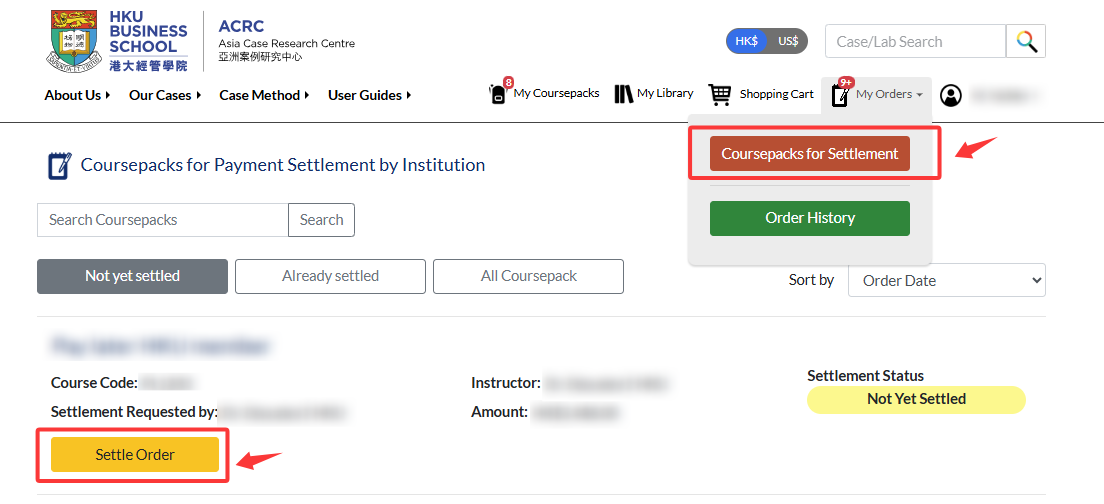
- If you are a Payment Administrator: Invoices are generated automatically after you settle a Coursepack order. You can download them by navigating to My Orders > Coursepacks for settlement.
No. Once an invoice has been generated, the billing information cannot be altered. If you need to correct the enrolment count or currency, please contact us so we can void the order.
Your order will revert to the Not Yet Settled status, and you can then go to My Orders → Coursepacks for Settlement to find the Coursepack order and go through the Settle Order process again with the correct details.