User Guides

Settle Payment for a Finalized Coursepack

After a Coursepack has been finalized, as a Payment Administrator, you can settle the Coursepack order and generate the invoice for further handling.

Go to Coursepacks for Settlement under My Orders. You will see a complete list of Coursepack orders in all status that has been assigned to you as the payment administrator.
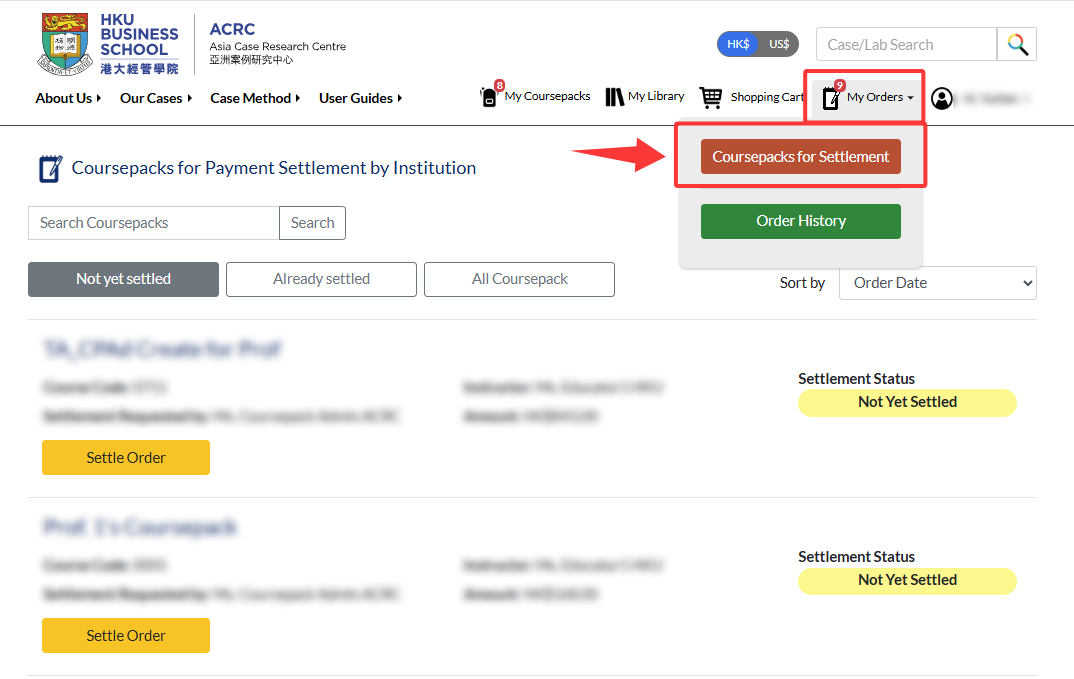
Instructional view highlighting the 'Coursepacks for Settlement' button within the expanded 'My Orders' dropdown menu.

Find the Coursepack and click Settle Order.

Highlighted 'Settle Order' button on a sample Coursepack with a 'Not Yet Settled' status.

You will see a payment summary of the Coursepack order. Here, you have another chance to confirm the final count of the students. If the number needs editing, click Enrolment Details.
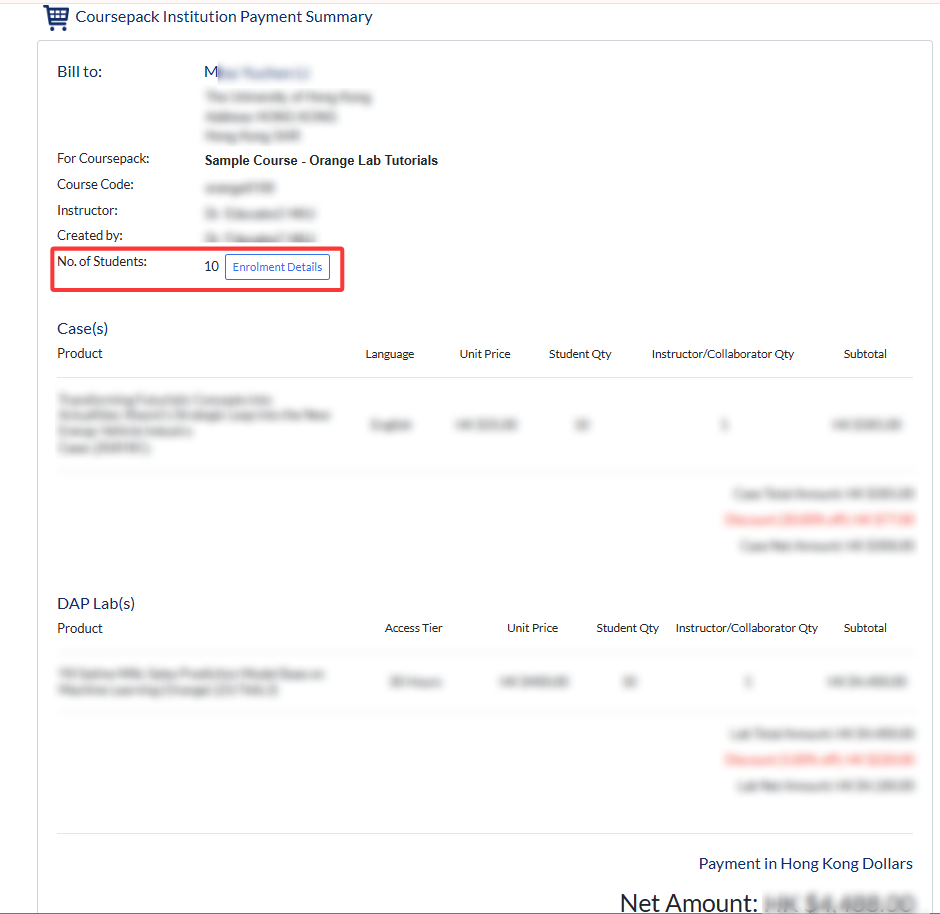
Coursepack Institution Payment Summary highlighting the 'No. of Students' row and its 'Enrolment Details' button.


Then you can update the number in the Actual no. of students who have used the Coursepack materials box and then click Update attendance and settle payment
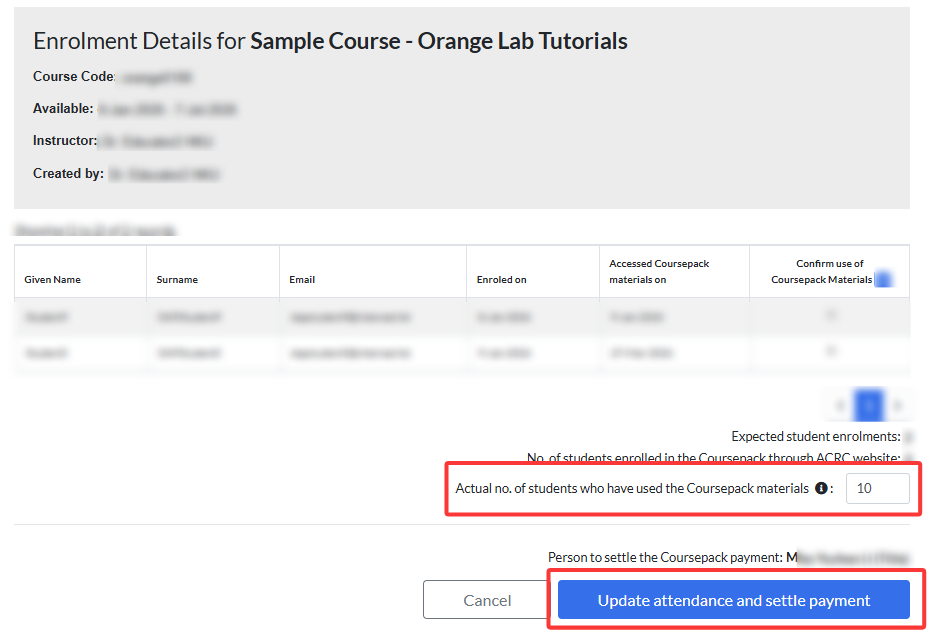
Enrolment Details page highlighting the 'Actual no. of students' input field and the 'Update attendance and settle payment' button..


If ready, click Make Payment under the payment summary.
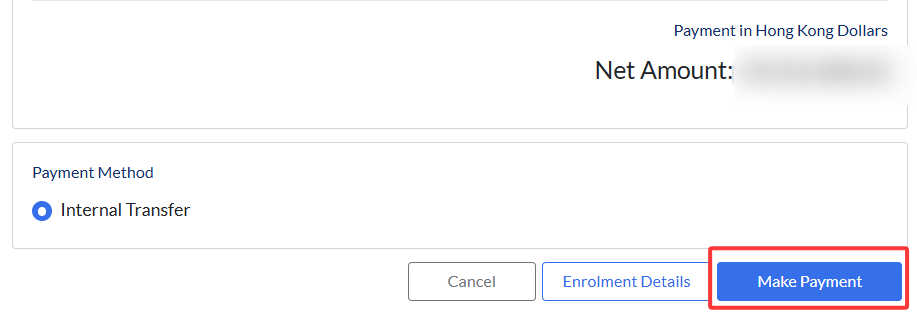
Payment screen footer highlighting the primary 'Make Payment' button.

  
Seeing the message below indicates that you have settled the order. You can go back to My Orders to download the invoice.
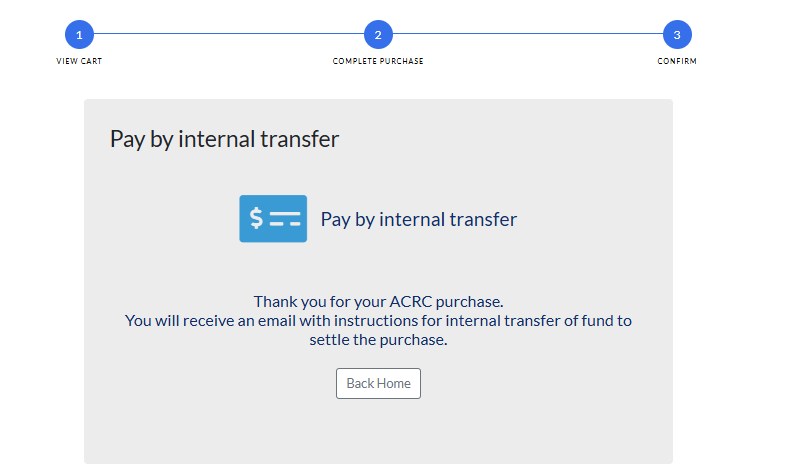
Payment confirmation screen for an internal transfer showing the final 'Confirm' step and instructions.


You can use the Already settled filter to locate the Coursepack order. Click Download Invoice.
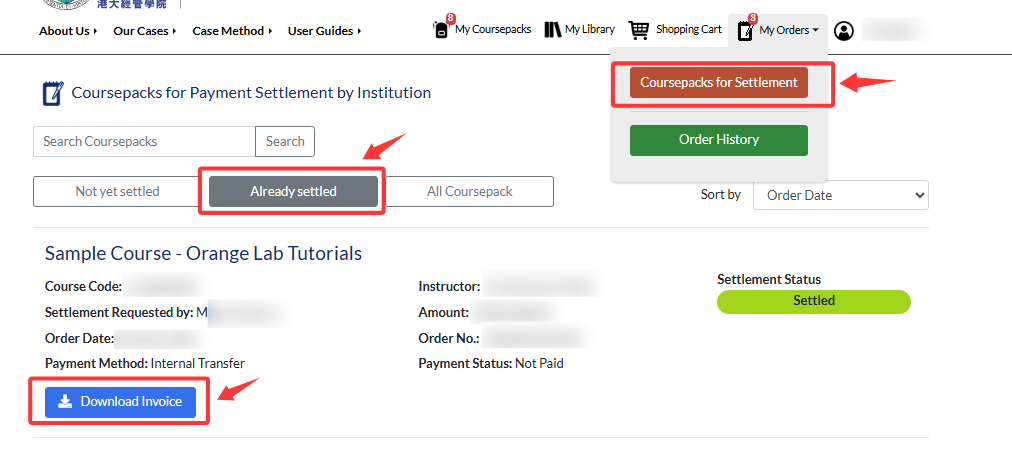
Dashboard showing a list of coursepacks for payment settlement. Red arrows highlight navigation to 'Coursepacks for Settlement', the 'Already settled' filter tab, and a 'Download Invoice' button for a specific record.

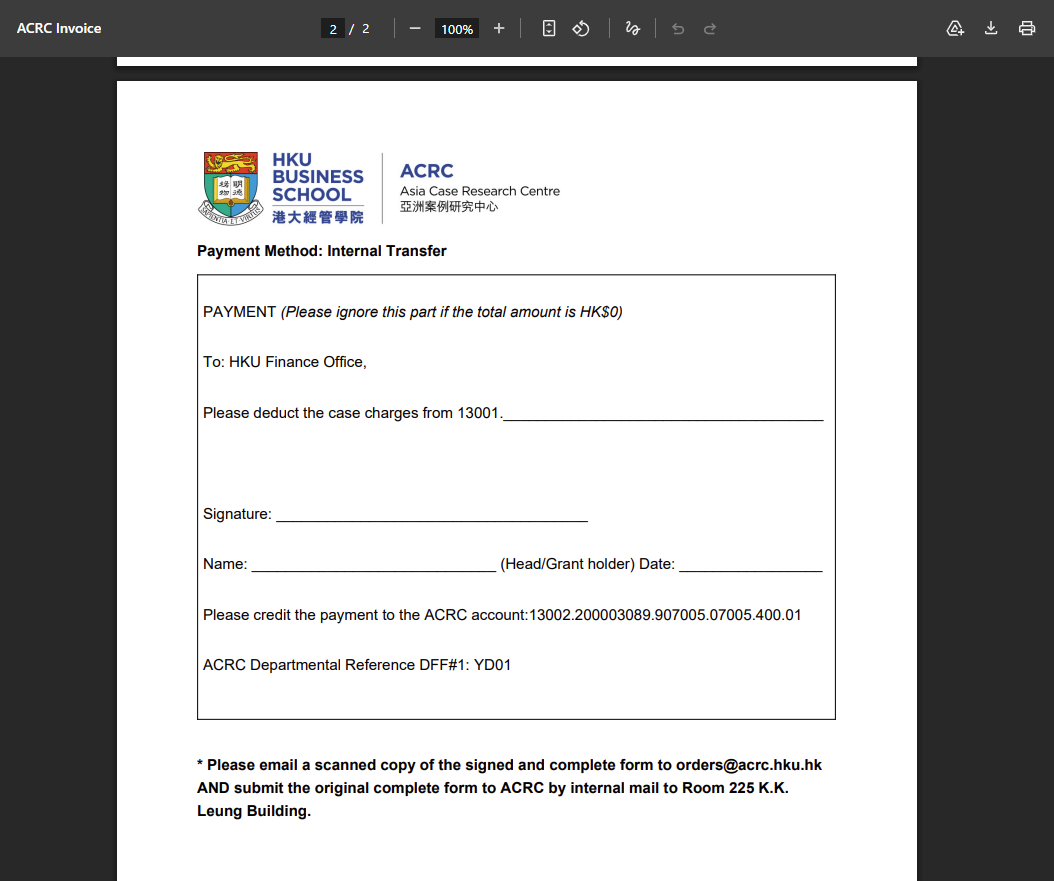
 The invoice is provided for your internal transfer payment process. 
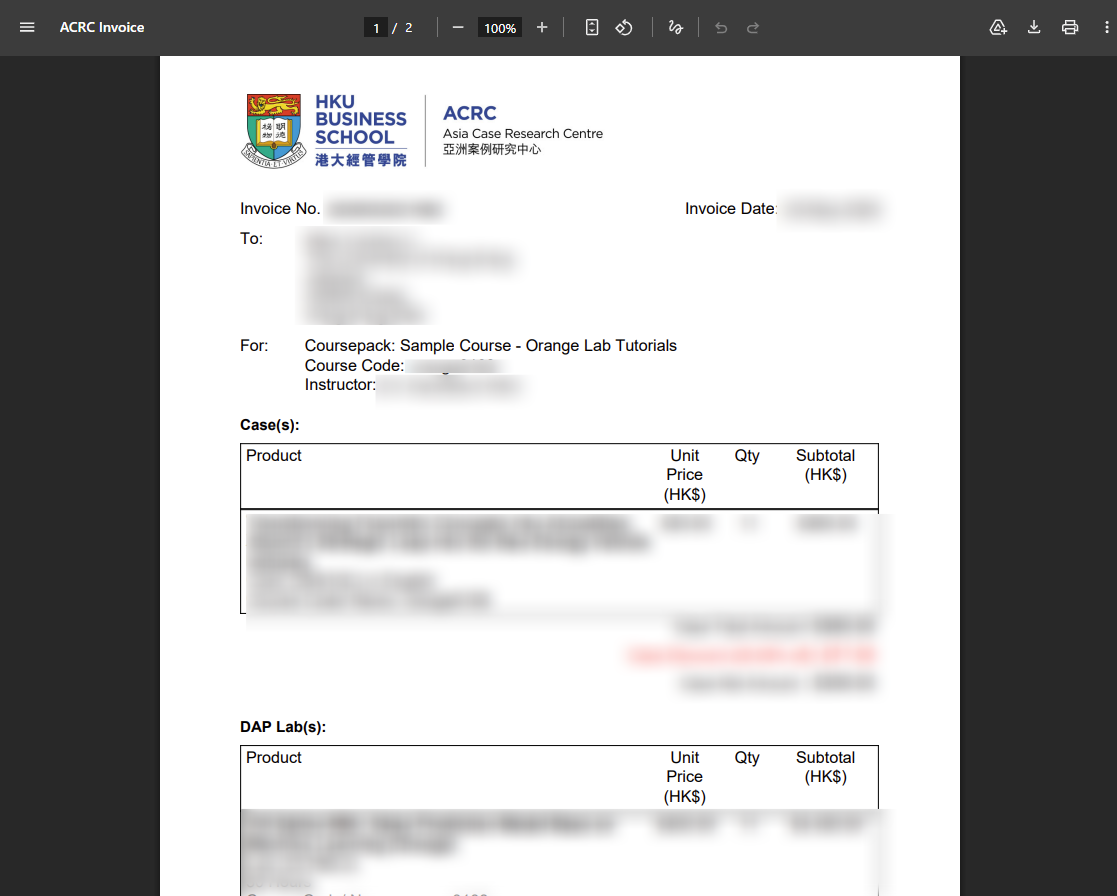
A PDF viewer displaying the first page of a sample invoice, with sensitive details like names, IDs, and pricing blurred out.

A PDF viewer displaying the second page of a sample invoice, featuring a printable form for authorizing an internal transfer payment.


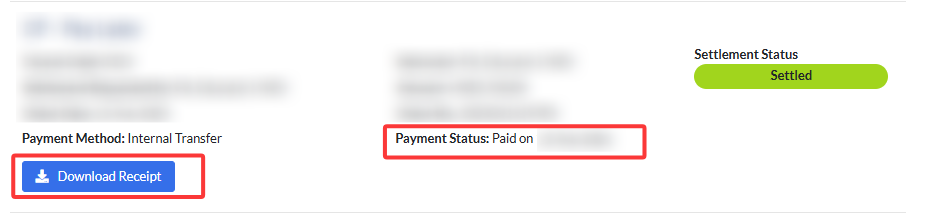
Once the payment is received, the Payment Status will be updated with your payment date, and you can go to My Orders again to Download Receipt


A settled Coursepack with red boxes highlighting the updated 'Paid on' status and the 'Download Receipt' button.