FAQ
General
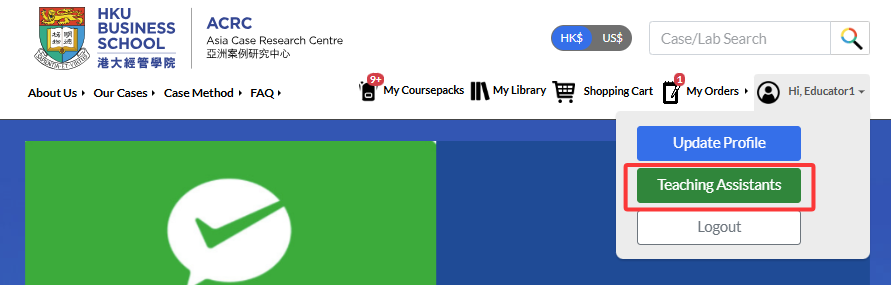
Log in and open your profile dropdown menu. Click Teaching Assistants. You’ll see a list of all assistants you’ve invited, including those who have not yet accepted the invitation.
Yes. You can invite more than one teaching assistant.
What your TA can do depends on the permissions you select when sending the invitation. Depending on the access you grant, your TA can:
- View your teaching materials
- Place orders on your behalf
- Create and manage your Cousrepacks
Additionally, If you assign them as a collaborator in a specific Coursepack, they can co-teach that Coursepack with you.
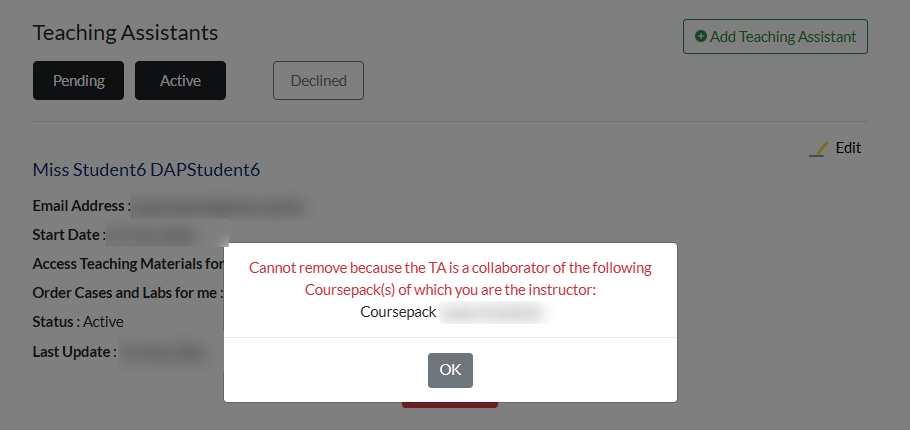
You can remove a teaching assistant (TA) as long as they are not collaborating on any of your activeCoursepacks.
Coursepack
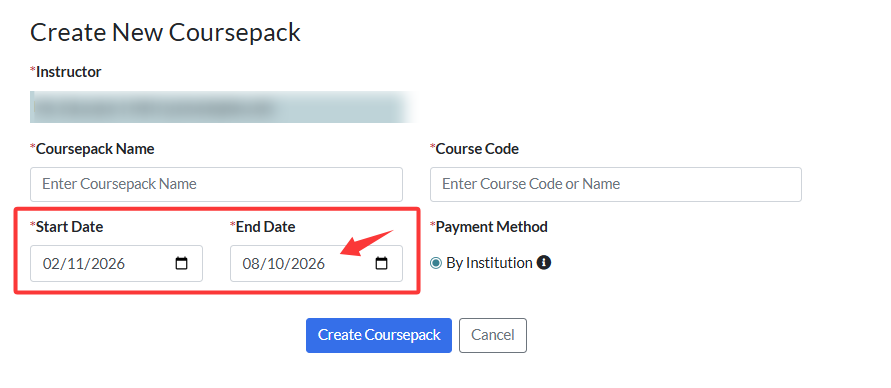
Coursepack materials remain accessible to students until the Coursepack end date (i.e., the expiry date), which is set during Coursepack creation.
You can set the availability period to be up to 6 months. We recommend choosing an end date that falls after your course officially ends so students have extra time to finish assignments and download materials.
Please note: Once a Coursepack expires, it cannot be reopened.
No. As an educator, your lab workspaces are tied to the specific lab product (reference number). If you use the same lab in three different Coursepacks, you will only have one master educator workspace. You can use this single workspace to hold and manage materials for all courses.
This is expected and does not affect your ability to use the case.
To prevent you from paying for the same material twice, our system automatically lets you reuse active licenses. If you purchased this same material for a different Coursepack within the last 6 months (the license period), the system provides your original licensed copy. Because the social DRM watermark displays the information from the original purchase, you will see your previous course code on the file instead of your current one.
To teach with a Coursepack, you’ll need:
- An ACRC educator account: You need to register using your institutional email address
- A Published Coursepack: You may create and publish it yourself, or ask your Teaching Assistant or an administrator to set it up for you.
- A Coursepack enrolment link shared with students: Once your Coursepack is published, the system will generate a unique enrolment link. You will share this link with the students so they can enroll and access all Coursepack materials in one convenient place.
You can build Coursepacks yourself, or authorize your invited TAs or Programme Administrators from your institution to create and manage Coursepacks on your behalf.
When someone creates a Coursepack for you, you will receive a system generated email notification. You can then view all Coursepacks associated with your account on the My Coursepacks page.
You can add new content to a published Coursepack as long as it is still within its availability period (before it expires). However, you cannot remove any items from a Coursepack once it has been published.
For Institutional Pay Later Coursepacks, new content must be added before whichever comes first:
- student enrolment is finalized, or
- the Coursepack reaches its expiry date
After adding new materials, you need to publish the Coursepack again so the updates automatically become visible to students. The Coursepack enrolment link will remain the same.
Yes. You can co-teach a Coursepack by inviting other educators to join your Coursepack as collaborators, or another instructor can invite you to join theirs. There is no limit to the number of co-teachers that can collaborate on a single Coursepack.
Once your Coursepack is published, you can invite students to enroll in the Coursepack by sharing a unique link.
- Go to your published Coursepack.
- Turn on the Enrolment Status switch to open the course.
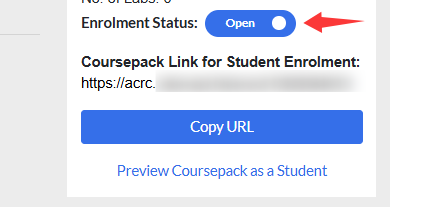
- Copy the unique enrolment link that appears.
- Share this link directly with your students. (e.g., via email, Canvas, Blackboard, etc.).
Note: To successfully enroll, students must have an active ACRC student account registered with their institutional email address.
You can see who has enrolled in your Coursepack via the student roster on the Coursepack page.
Currently, the system does not support removing students from a Coursepack once they have joined. We recommend turning off the Enrolment Status switch as soon as your intended students have joined. Once closed, no new students can join, even if they have the link.
Finalizing enrolment applies only to Institutional Pay Later Coursepacks. It is the process of confirming the final number of enrolled students for accurate billing.
When you finalize your enrolment, please keep the following in mind:
- The Cousrepack locks: You can no longer add new contents or enroll new students to the Cousrapck.
- When to do: Because it locks the roster and content, we recommend taking this step only afte ryour course isntruction has finished.
- Student access remains till Course End Date: Finalizing enrolment does not impact access to Coursepack materials for existing students and educators.
Coursepack enrolment can be finalized by:
- You (the instructor)
- Coursepack collaborator
- Coursepack creator (such as an administrator or your Teaching Assistant
⚠Important: Once enrolment is finalized, no additional students or new content can be added. See More: What does it mean to finalize enrolment
No. Once a Coursepack has expired, it cannot be reopened. You also cannot add any new content to it.
How you pay for a Coursepack depends on whether your institution has an Institutional Agreement with ACRC and the payment option you select during setup.
For a full explanation of all available payment options, please see our Payment Options article.
DAP Lab
A DAP lab is an online environment where students solve data analytics cases using an embedded dataset. It is supported by the Data Analytics Platform (DAP), a cloud-based learning platform that facilitates analytics case teaching.
The platform supports three types of environments: RStudio (R), Jupyter Notebook (Python), and Orange Data Mining. If you are an educator and interested in adopting data analytics cases and labs in your teaching, please contact info@acrc.hku.hk for further information.
Each DAP lab comes preloaded with embedded datasets and required packages, allowing students to begin their analysis on a webpage without software installation needed.
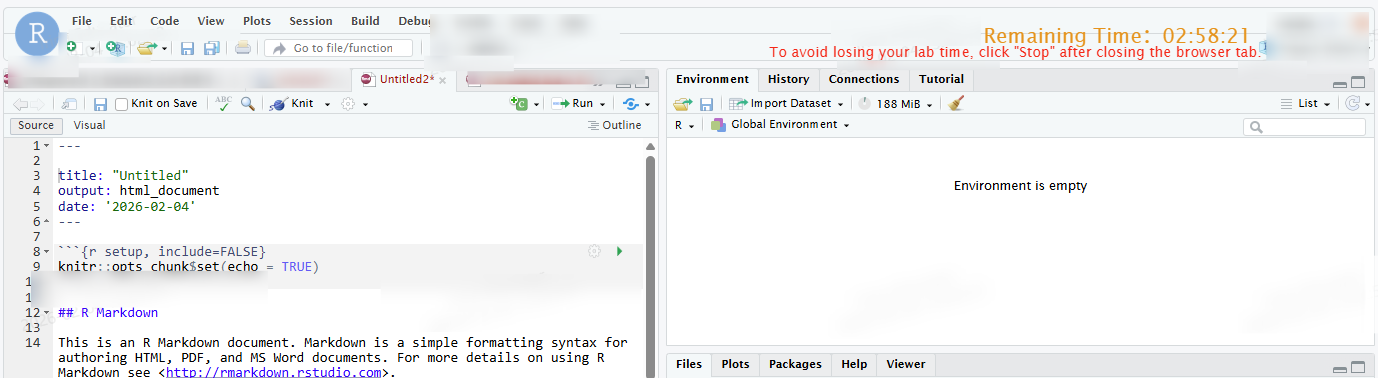
Yes. Educator accounts are eligible for a free trial of a lab.
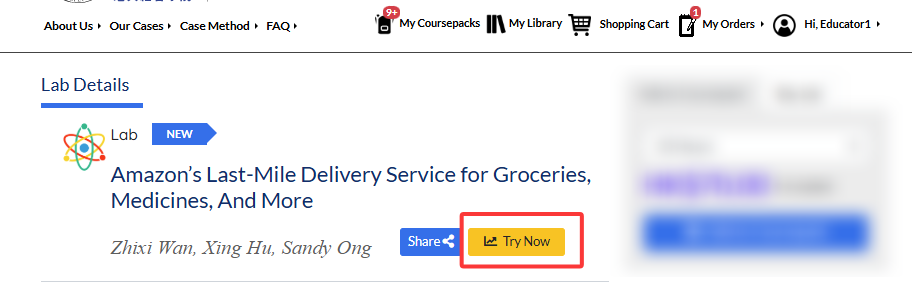
To start a trial, go to the lab’s page and select Try Now. You can then go to My Library to access your lab trials. See more details at Take a Lab Trial.
Students can launch the lab directly from the Coursepack page. They can access the lab as long as you have made the lab “Active”. If you have set a start date for the lab, it will only become available starting from that day.
Yes. From your educator view, you can customize lab access in three ways:
- Activate/Deactivate: Use the toggle switch to turn student access on or off at any time.
- Date Range: Set specific start and end dates to define a calendar window for when students can access the lab.
- Time Limits: Set the “Lab Duration Allowed” to restrict how long a student can work inside the lab once they begin.
Depending on the instructor’s settings, the lab may be unavailable to students in the following situations:
- The lab has not been set up yet or is inactive.
- The lab start date has not yet been reached.
- The student has not been assigned to a group for a group lab.
To set up lab and manage lab access period, see set up a coursepack lab. To assign groups, see manage students groups