User Guides
Add Contents to a Coursepack
On the Coursepack homepage, click Add Content.

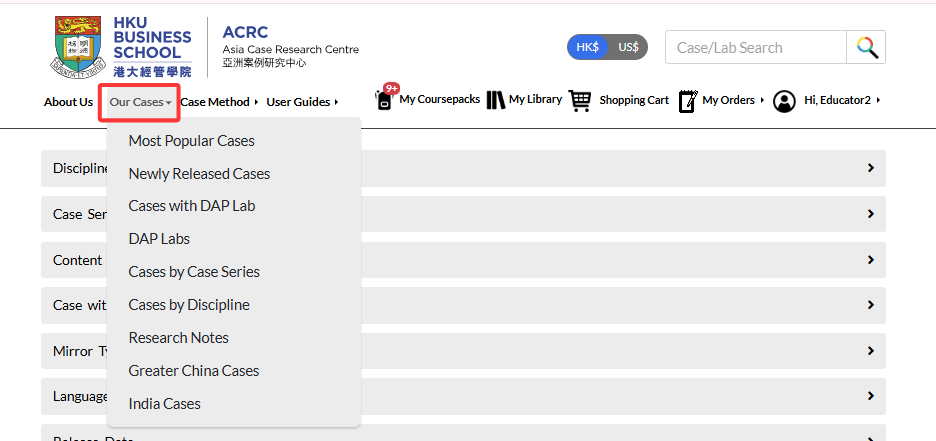
You will be taken to the case browsing page, where you can browse the catalog or search for a specific case using the search box.

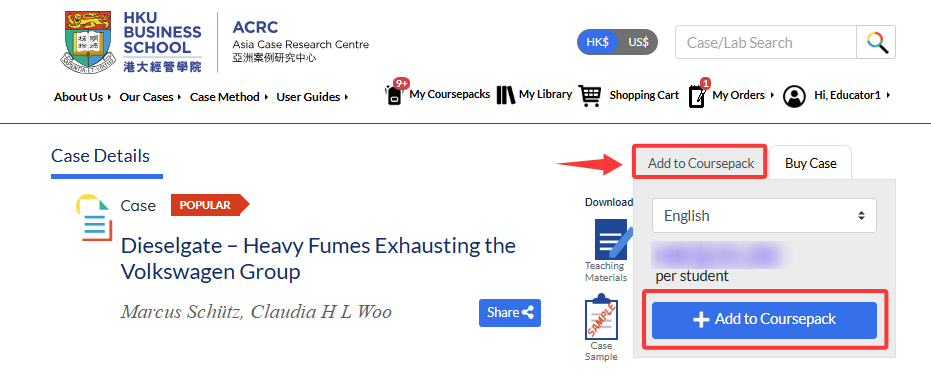
Switch to the Add to Coursepack tab on the right, select your preferred language version, and click Add to Coursepack.
A pop‑up window will appear with a list of all your active Coursepacks. The current Coursepack will already be pre‑selected. Click Add to Coursepack to confirm.
You may also select multiple Coursepacks if you wish to add the case to more than one coursepack at the same time.

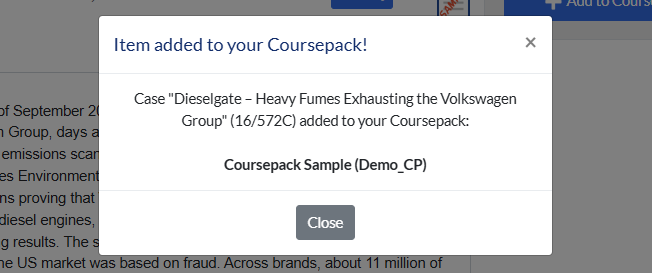
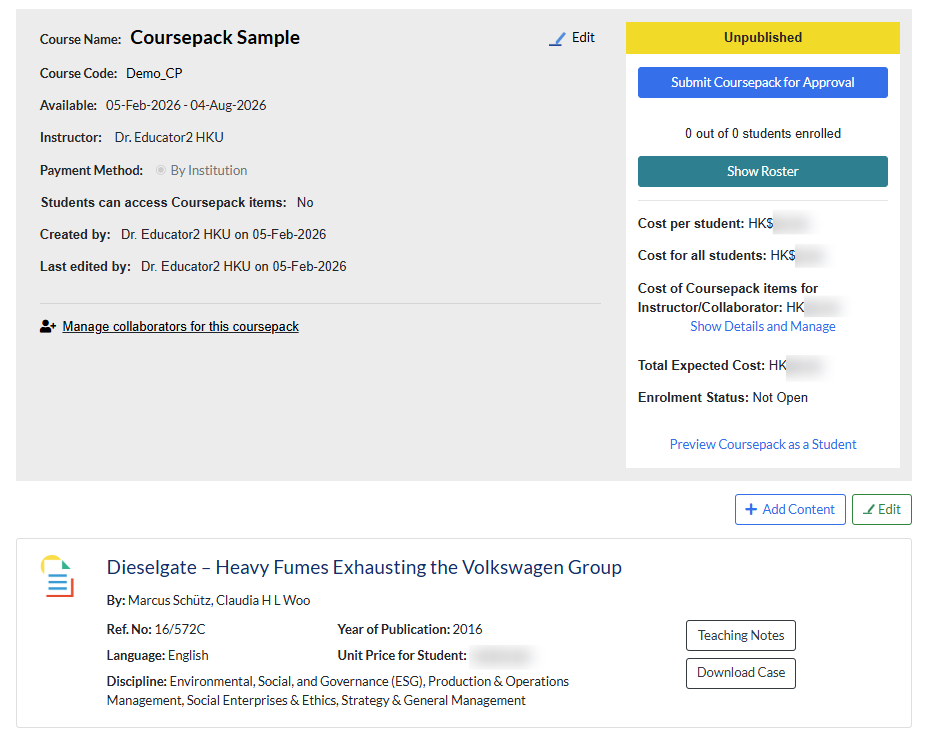
A confirmation message will appear. Click Close, and you will be taken back to the Coursepack homepage, where the case will already be added.